Transmission Module: Difference between revisions
Jump to navigation
Jump to search
No edit summary |
|||
| Line 35: | Line 35: | ||
# Click the settings button | |||
# Click the Browse button and select your keystore | |||
# Tick the 'Save keystore settings' to keep your change | |||
[[File:ImportKeystore.png | 500px]] | |||
It's done | It's done | ||
Revision as of 12:53, 5 September 2024
Page's last update : 05/09/2024

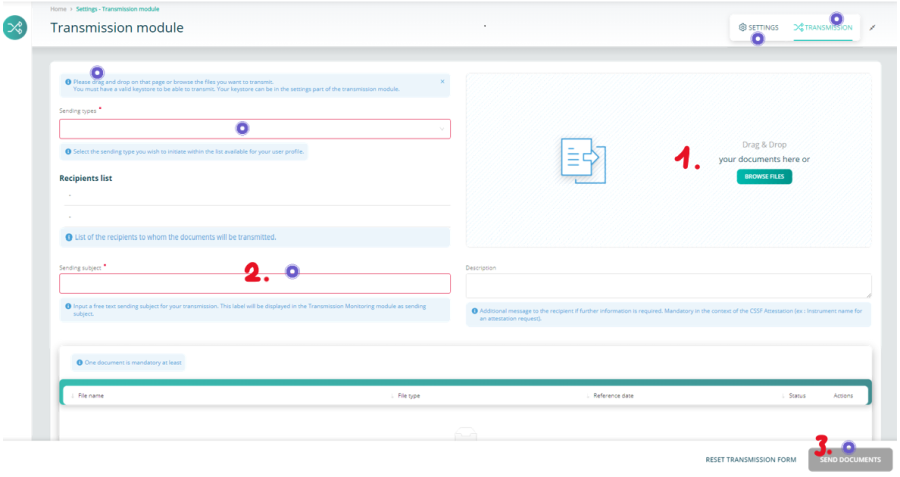
- Add one or several documents
- Fill the red-framed fields
- Send
Keystore Selection
The activated keystore, containing your LUXTRUST certificate and your encryption keys, must now be provided to the workstations of users that send encrypted reports.
- Click the settings button
- Click the Browse button and select your keystore
- Tick the 'Save keystore settings' to keep your change

It's done