| The ports '''80''' (HTTP) and '''443''' (HTTPS) must be enabled<br>as well as those technical URLs : '''www.e-file.lu/WSEfileFlex''' and '''www.e-file.lu/WSEfile'''
|-
! scope="row" | Cookies
|Cookies have to be '''enabled''' <br> [https://www.whatismybrowser.com/guides/how-to-enable-cookies/ How to enable Cookies]
|-
! scope="row" | Web browsers
| e-file is compliant with most current browsers, in their default setup : [[File:Icon Chrome.png | 30px]] [[File:Edge Chromium.jpg | 45px]] [[File:logo_ff.jpg | 35px]] [[File:logo_safari.jpg | 40px]]<br>Please call us if you have a particular configuration.
|}
The activated keystore, containing your LUXTRUST certificate and your encryption keys, must now be provided to the workstations of users that send encrypted reports.
| ''All reporting files transmitted to the CSSF through the external transmission channels must be encrypted according to the standards defined in the related document of Circular CSSF 23/833 “Methods of transmitting reports via external channels”.'' ([https://www.cssf.lu/en/file-transport-and-data-protection/ See more about data protection])<br>
For encryption purposes, a Luxtrust SSL certificate is mandatory to use our services.<br>
To be able to order the certificate on Luxtrust’s webpage [http://www.easyssl.lu www.easyssl.lu] you need to use a modern browser (Chrome, Edge, Firefox, Safari, ...)
[[E-file Administration#LUXTRUST_certificate_purchase_order|'''=> How to order your Luxtrust certificate''']]
|}
== '''Manual file transmission''' ==
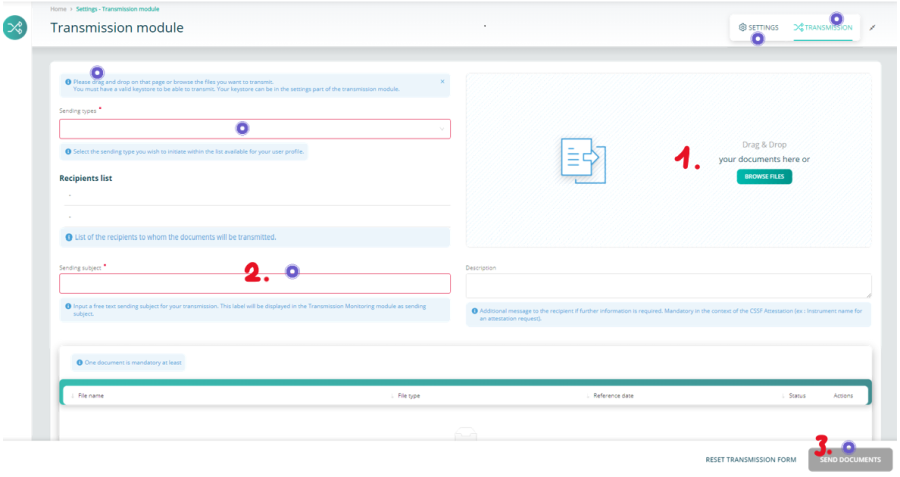
Our Transmission Module allows you to submit reports and documents to Luxembourg authorities.
While renewing a Luxtrust certificate, the Transmission Module sometimes creates a new keystore file instead of amending the existing one. This happens when the existing keystore is not selected during the keys generation.
The new keystore then allows all E-file functionnalities. However, documents encrypted with or for one of your old certificates cannot be opened.
This article explains how to merge two keystores.
== How does a keystore work ==
[[File:schemaKeystore.jpg|680px]]
Keystore is a Java technology that keeps an history of your certificates like a stack. It is a small file which extension is ".ks" and contains a list of certificates.
<br/>
Every certificate contains a public key but also a private key which is protected by a password (symbolized [[File:cleJaune1.jpg]]). The keystore access is protected by a password as well (symbolized [[File:cleNoire1.jpg]]). '''The private key password and the keystore password must always match''', thus [[File:cleJaune1.jpg]]= [[File:cleNoire1.jpg]]. For this reason make sure to always use the same password while handling the keystore.
<br/>
During encryption or decryption, the Transmission Module will browse the different keystore's certificates in order to find the associated private key. That's why it's better to have all your company's certificates inside the same keystore.
On the previous sketch, the certificate D has been inserted in a new keystore (keystore 2). For convenience reasons, we prefer putting it in the other keystore (keystore 1) at the top of the pile.
<br/>
== How to merge two keystores ==
The merging of two keystores is done thanks to an independent Java software called KeyTool which can be downloaded at the following link : [[http://www.e-file.lu/download/KeytoolIUI.zip]].
To open it, double click on '''keytooliui.jar'''.
Follow all the steps to import public and private key from a certificate to another.
[[File:1vue.png|700px]]
<br/>
*Select "Import private key from other keystore" as shown on the above printscreen (step 1)
*Click on the two icons in the "Source" section in order to select the keystore containing the certificate to import (step 2). The source keystore corresponds to Keystore 2 of the "How does a keystore work" section sketch.
*Do the sane for the target section that selects the keystore on which import the certificate (step 3). The target keystore corresponds to the Keystore 1 of the of the "How does a keystore work" section sketch.
*Click OK (step 4)
[[File:2vue.png|700px]]f
*Select the certificate (that contains the private key) of the source keystore that you desire to import, input its password in the specific field at the bottom of the window.
Click OK<br/>
[[File:3vue.png|700px]]
Input the name of the new private key that will be generated in the target keystore. The naming convention is :
'''As an example''', if the target keystore contains already 4 certificates, it has the following entries :
*cleprivalid_1
*cleprivalid_2
*cleprivalid_3
*cleprivalid_4
The new key name will be cleprivalid_5.<br/><br/>
*Input the password that will be associated to the new key. '''Warning : it must be the same as the other private key's password of the target keystore''' (the one of the keystore). Confirm password.
*Click Ok
[[File:4vue.png]]
The following window appears to indicate the success of the import. When clicking Ok you will see the target keystore content that should contain the imported certificate.
The activated keystore, containing your LUXTRUST certificate and your encryption keys, must now be provided to the workstations of users that send encrypted reports.
1- Click the settings button
2- Click the Browse button and select your keystore
3- Tick the 'Save keystore settings' to keep your change